Tuesday, 16 December 2014

Windows freezes or stops responding frequently

Windows freezes or stops responding frequently

Tip: This document contains recommendations on what to do if the
 computer frequently freezes or completely halts. An easy way to
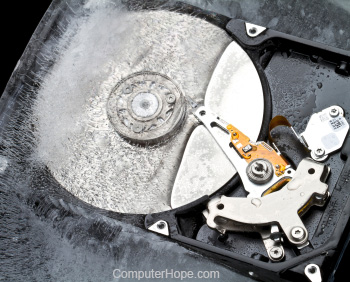
Frozen computer hard drive determine if your computer is in this situation is by pressing the Num Lock button on the keyboard and watching the Num Lock led to see if it turns off and on.
If you can get the light to turn off an on, press CTRL + ALT + DEL and End Task the frozen program. Otherwise follow the steps below.
Software related issue
A computer locking up or freezing is often is caused by a software related issue. If you're encountering lockups when the computer is opening a particular program, make sure you have all the latest updates for that program. You can find the latest updates for your software through the software developer or publisher.
Too many programs open
Each program or Window you open on your computer takes some of the computers resources in order to keep it running. If you have too many programs open at one time, your computer may be low on resources and it is causing your computer to freeze. Try only running one program at a time to make sure your freezing is not being caused by too much being open.
Driver related issue
A computer lock up can also be caused by drivers. For example, if there is an issue that exists with your video drivers a computer could lock up while playing a game or displaying any other video.
First make sure no errors exist in the Windows Device Manager. This can be done by opening the Device Manager and verifying that no "Other Devices" are listed and no device has any exclamation mark or red X.
Next, make sure you have the latest drivers for all major devices in your computer (video, sound, modem, and network). A listing of driver related pages as well as driver related help can be found on our drivers page.
Operating system related issue
Make sure your operating system has all of the latest updates installed on it.
Heat related issue
If the computer processor is getting too hot it can cause the computer to freeze. If you have heard any abnormal noises coming from your computer recently such as a high squealing, this could indicate a fan may be failing in your computer.
You can first start by verifying the fan on the power supply is working by examining the back of the computer and seeing if the fan is moving and moving smoothly. For all other fans in the computer you need to either open the computer and make sure the fan are working (processor fan and case fan) or if the computer monitors the RPM of the fans, enter CMOS setup and make sure the BIOS does not report any errors.
Users may also be able to determine how hot their computer is by on board thermal sensors. If your computer comes equipped with these sensors, make sure your CPU is not running too hot.

Hardware issue

Caution: Some of the steps below require you open your computer. While in the computer, be cautious of ESD.
In addition to software, hardware can also cause a computer to lock. If you have recently added any new hardware into the computer, temporarily remove it to make sure it is not the cause of your issue.
Before attempting to remove any hardware, make sure the computer has no conflicts in Device Manager.
If you have not recently installed any new hardware into the computer, the next best solution to determining if this is a hardware issue would be remove any hardware on the computer that is not needed. For example, remove your modem, network card, sound card, and any other expansion cards that are not needed for the computer to operate. Run the computer without these cards to see if they are the cause of your issue.
Serious issue with Windows
If you have tried all the above recommendations and the computer continues to frequently lock up, its possible that Windows may be seriously corrupt. Try running through the basic troubleshooting steps for your version of Windows on our basic troubleshooting page. If these additional steps do not resolve your issue, we suggest you backup all information and erase and reinstall Windows.
Hardware failure
If after re-installing your operating system, or during the installation of your operating system, your computer turns off abnormally, it is very likely that other hardware is failing in the computer. Often this is RAMCPUMotherboard, or Power Supply (in that order).

If you have extra available parts or have a friend or co-worker with a similar configuration that is willing to allow you to test their hardware in your computer, try swapping these parts to determine if they are at fault. Otherwise, you need to have the computer serviced.

    What should you do when your computer freezes or stops responding


  Shayma'a Al-thagafi

How to Tell if a Hard Drive Is Bad !!

  !!How to Tell if a Drive Is Bad 


Hard drives form the basis of our computing. The use of computers comes down to manipulating data, and the hard drive is, of course, where we store all our data;
.family albums, music,emails,documents,the list goes on

Most of the components in your computer are electronic devices. They don’t fail with time like a mechanical device such as a car. But your hard drive is one of the few mechanical devices used in modern computing, and as such, it’s destined to die eventually. It’s important to learn to recognize the warning signs of an imminent hard drive failure,so you can rescue all that data before it’s lost—sometimes forever, not retrievable at any cost


:Find out when it’s going to fail before it fails

 That’s not always possible, and sometimes a hard drive will just die—but it’s still important to keep an eye on the symptoms of an imminent hard drive so you have the chance to back-up your data and get professional help. Hard drives are incredibly sensitive bits of hardware, so don’t try to crack it open and have a look inside unless you know what you’re doing. And most definitely ensure that if you do crack it open, the platters don’t get exposed to the open air—hard drives can only be opened in Class 100 clean rooms or they’re pretty much instantly destroyed by dust. It’s a lot easier (and cheaper) to back-up than to get your data recovered. Once you detect any of the signs of failure you need to ensure that you have a back-up and if not, make one. Then when the drive dies, you can claim your warranty if you still have it, or buy a new drive, and be on your way. Recovery can cost thousands and thousands of dollars, with no guarantee the data will all be recovered; it sure is a ridiculous amount to pay, but there’s not much you can do but shop around and find the best price. The cost of transferring a back-up onto a brand new drive is much cheaper than having a recovery specialist do the same for you

:Listen for strange noises

Sometimes hearing strange grinding and thrashing noises means your drive is beyond repair—for instance, if you have had a head crash, it very often is. Or it could just be that the motor has failed or your hard drive is grinding away because of noisy bearings. If you’re
hearing strange noises then act very quickly—you probably don’t have much time
:Watch for disappearing data and disk errors

Your computer won’t let you save a document? Or you’re sure that you had a file on your desktop yesterday that’s nowhere to be seen today? Programs that always worked
 suddenly stop working, asking where a file it depends on is stored? These are all potential signs that your hard drive is on its way out. Of course, it could be that your kids moved your files for fun or a virus is eating through them, but disappearing data is never a good sign for your drive if you can rule out those alternative causes
:Your computer stops recognizing your drive

This may seem obvious, but if your computer no longer recognizes your drive chances are there’s a problem with it, not the computer. Test it in a friend’s computer and see if your hard drive is recognized by it. Often, this will be a logical failure—unless you can hear strange noises that indicate a severe mechanical or head problem

:Computer Crashes

Does your computer regularly blue-screen or suddenly reboot? Does it crash often, especially when booting your operating system? If your computer is crashing, especially at times when the computers is accessing files (such as during the boot sequence), it may indicate a problem with your drive
:Really Slow Access Times

It should not take half an hour to open a folder in Windows Explorer, or two hours to empty the trash. People have come across this problem plenty of times over the years, and it’s always followed by a failing hard drive within a month or two

:Sound is a great indicator

As soon as the sound changes from the norm, or you get plenty of clicking and grinding from your hard drive, you need to power it down immediately. Get to know the sound of your hard drive while it’s young and in working order, because you’ll need to be able to hear the slightest differences when it gets older


If your computer crashes or can't find a file that was there not long ago it can mean that your hard-drive is on its way out, but it could also be that there is a simple file-system error in the disks' formatting

These types of error can usually (but not always) be fixed by using the chkdsk function that comes as standard in nearly all Windows installations. To correct a file-system error on drive C:, open a command-prompt while running your computer as an administartor if necessary - if using Windows Vista or later - and type "chkdsk C: /f". (If you want chkdsk to check for data file errors too you can add another parameter: "chkdsk C: /f /r".)


chkdsk will check and repair the file-system structure on disk C

(Plus check and repair any data-file errors if the /r parameter is used.). If you have more than one hard-drive it is advisable to run chkdsk on those too, by substituting the C: for the drive-letter of that particular extra hard-drive. (Such as E: - The command will then look like "chkdsk E: /f /r".) This will clear up a file-system error in most cases, and the drive will work normally again. However if the error recurs, either on reboot or within 12 hours of operation on the same drive as the original error; then your drive is failing and you should try to back up as much data from that drive as you can as quickly as you can before removing and replacing that drive. (It is irreparable and will only deteriorate further if you continue using it.) Time the startup of the system


 How you know your hard drive is dead!!


:By
Saeeda Ibrahim


How to Protect Your Computer


The same advice parents might deliver to young drivers on their first solo journey applies to everyone who wants to navigate safely online. A special agent in our Cyber Division offered the following:
- "Don't drive in bad neighborhoods."
- "If you don't lock your car, it's vulnerable; if you don't secure your computer, it's vulnerable."
- "Reduce your vulnerability, and you reduce the threat."
Below are some key steps to protecting your computer from intrusion:
- Keep Your Firewall Turned On: A firewall helps protect your computer from hackers who might try to gain access to crash it, delete information, or even steal passwords or other sensitive information. Software firewalls are widely recommended for single computers. The software is prepackaged on some operating systems or can be purchased for individual computers. For multiple networked computers, hardware routers typically provide firewall protection.
- Install or Update Your Antivirus Software: Antivirus software is designed to prevent malicious software programs from embedding on your computer. If it detects malicious code, like a virus or a worm, it works to disarm or remove it. Viruses can infect computers without users' knowledge. Most types of antivirus software can be set up to update automatically.
- Install or Update Your Antispyware Technology: Spyware is just what it sounds like—software that is surreptitiously installed on your computer to let others peer into your activities on the computer. Some spyware collects information about you without your consent or produces unwanted pop-up ads on yourweb browser. Some operating systems offer free spyware protection, and inexpensive software is readily available for download on the Internet or at your local computer store. Be wary of ads on the Internet offering downloadable antispyware—in some cases these products may be fake and may actually contain spyware or other malicious code. It's like buying groceries—shop where you trust.
- Keep Your Operating System Up to Date: Computer operating systems are periodically updated to stay in tune with technology requirements and to fix security holes. Be sure to install the updates to ensureyour computer has the latest protection.
- Be Careful What You Download: Carelessly downloading e-mail attachments can circumvent even the most vigilant anti-virus software. Never open an e-mail attachment from someone you don't know, and be wary of forwarded attachments from people you do know. They may have unwittingly advanced malicious code.
Turn Off Your Computer: With the growth of high-speed Internet connections, many opt to leave theircomputers on and ready for action. The downside is that being "always on" renders computers more susceptible. Beyond firewall protection, which is designed to fend off unwanted attacks, turning thecomputer off effectively severs an attacker's connection—be it spyware or a botnet that employs yourcomputer's resources to reach out to other unwitting users.


For more information
http://www.youtube.com/watch?v=uJRqZTNMCMo

by:Njood AL-Nufaei

Monday, 15 December 2014


Jump to intractable deleted file and dish it described


The file was deleted


Bdoor Abed -